

Online Loan Application: User Training Guide
Introduction
This guide shows Shelloyees Sacco members how to apply for a loan online through the Member Portal, from signing in to submitting the application.
It is written for members applying for the first time. After working through it, you will be able to:
- sign in to the Member Portal
- open the loan application form and fill in each field correctly
- move through the four application stages: Apply, Loan Security, Review and Submission
- find your application afterwards and know where to get help
Before you begin
You need an active Member Portal account before you can apply. Have these ready:
- Portal login: your registered mobile number or email, and your password.
- A device with internet: a computer, tablet or phone with a current web browser.
- Your loan details: the loan product you want, the amount, the repayment period in months, and the purpose of the loan.
- Your preferred mode of disbursement: how you want to receive the money.
Not yet registered on the portal? Email support@shelloyeessacco.co.ke to get set up.
Tip: Use the Loan calculator in the left-hand menu to estimate your repayments before you apply.
Applying for a loan, step by step
The application takes four steps: sign in, open the application form, complete the Apply tab, then move through the remaining tabs to submit.
Step 1: Sign in to the Member Portal
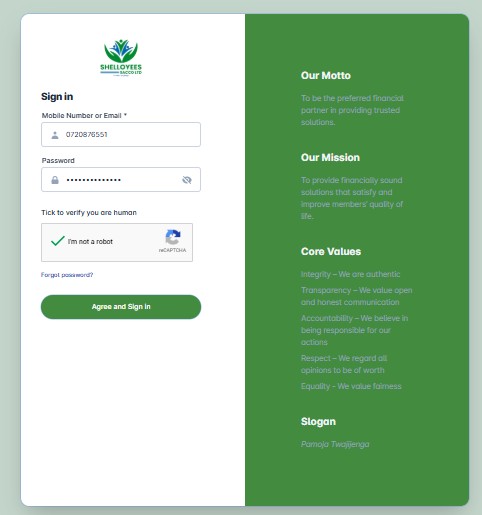
- Open https://memberportal.shelloyeessacco.co.ke/#/sign-in in your browser.
- Enter your mobile number or email and your password.
- Tick I’m not a robot.
- Click Agree and Sign in.
If you forget your password, click Forgot password? under the verification box.
Step 2: Open the loan application
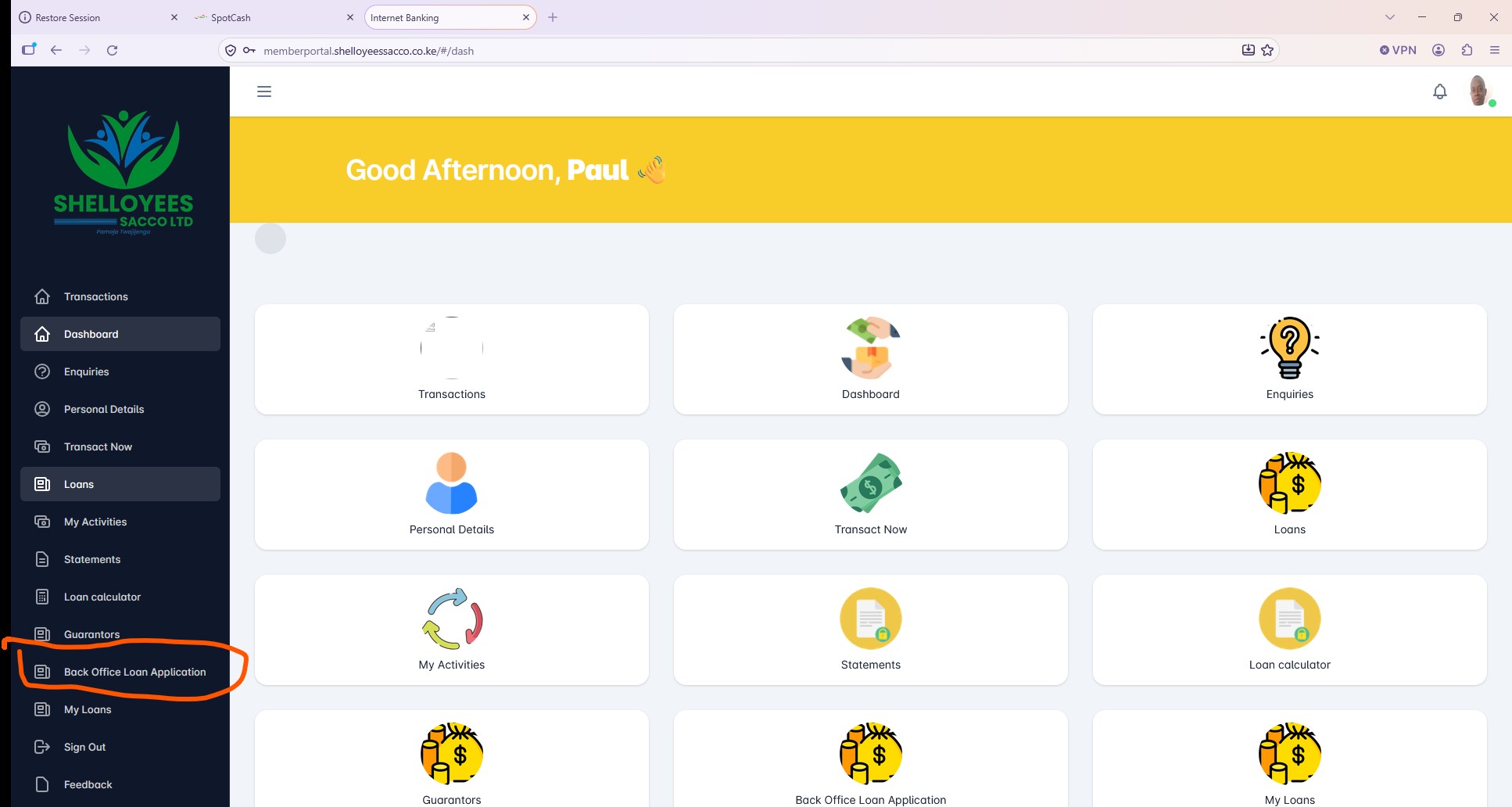
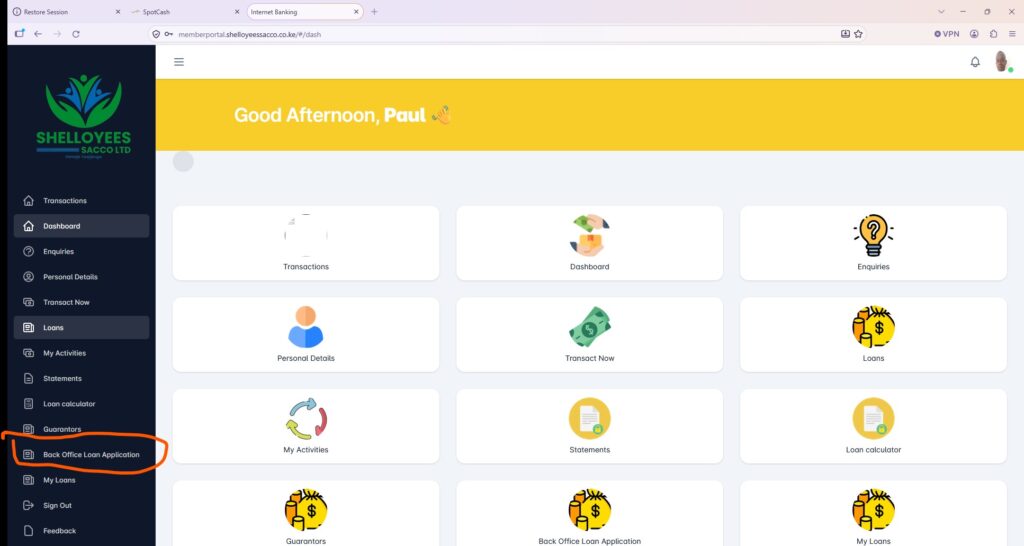
On the dashboard, look at the menu on the left and click Back Office Loan Application. The same option also appears as a tile on the dashboard.
 Step 3: Complete the Apply tab
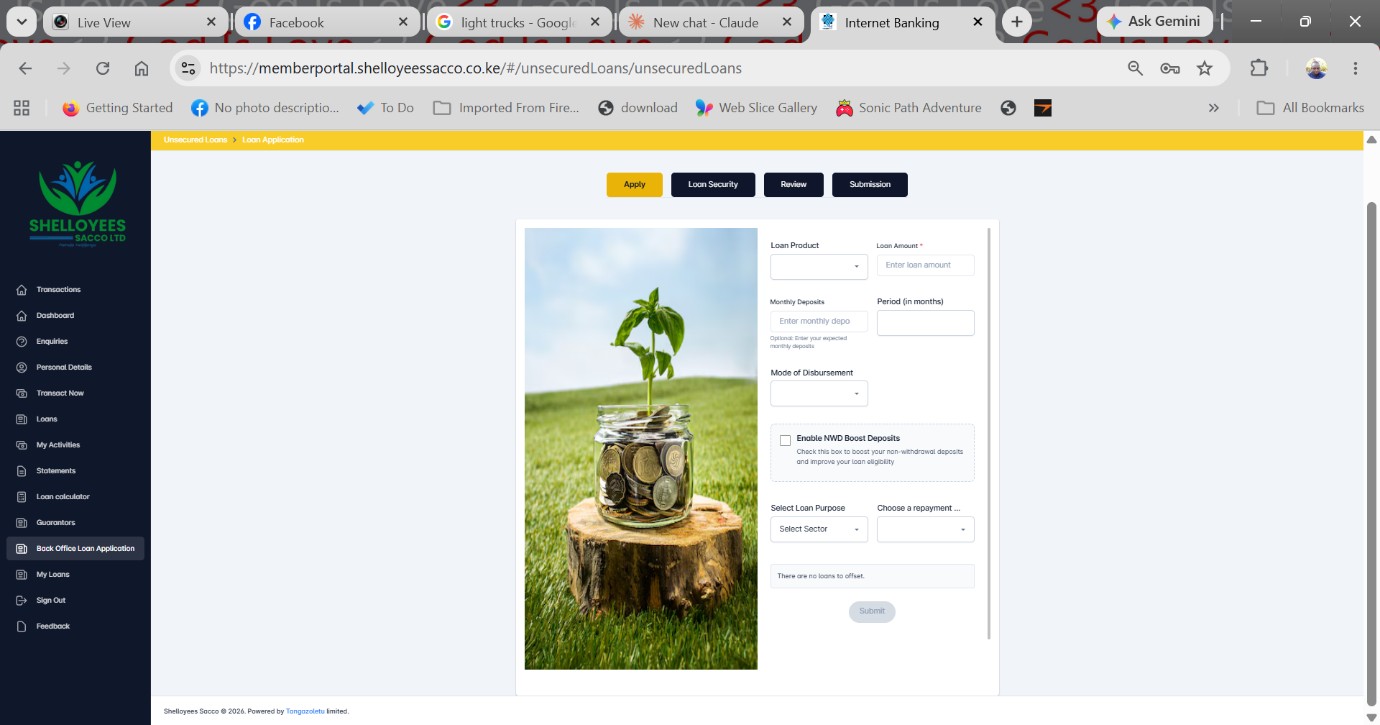
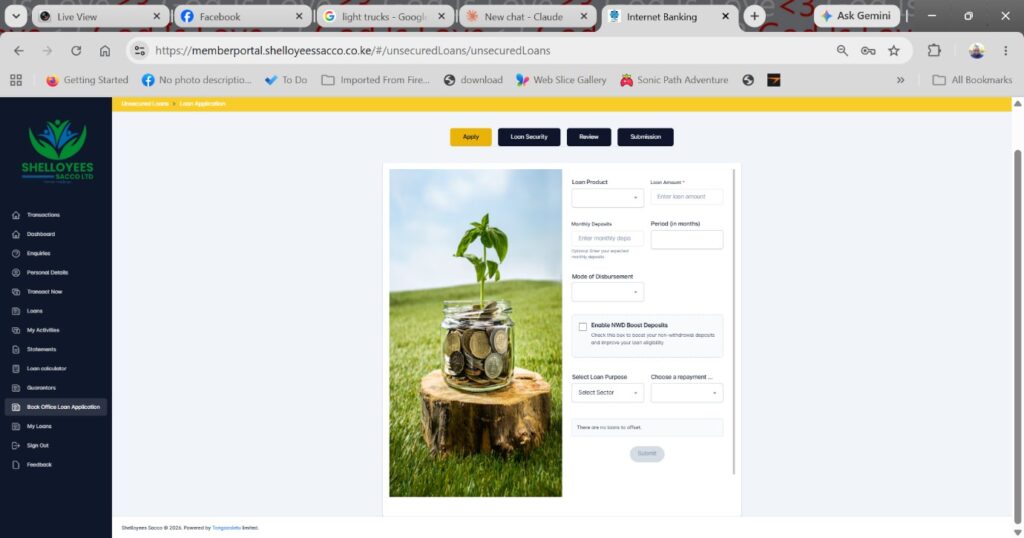
The form opens on the Apply tab. Four tabs run along the top: Apply, Loan Security, Review and Submission. Fill in the fields as follows:
| Field | What to enter |
| Loan Product | Pick the loan product from the dropdown |
| Loan Amount (required) | The amount you want to borrow |
| Monthly Deposits (optional) | The monthly deposit you expect to make |
| Period (in months) | How many months you want to repay over |
| Mode of Disbursement | How you want to receive the loan, from the dropdown |
| Enable NWD Boost Deposits | Tick to boost your non-withdrawal deposits and improve your loan eligibility |
| Select Loan Purpose | Choose the sector the loan is for |
| Choose a repayment… | Pick your repayment option from the dropdown |
The form also shows a note, There are no loans to offset, when you have no existing loans to clear with this one. The Submit button stays greyed out until the required fields are complete.
 Step 4: Continue through the remaining tabs
Work through Loan Security, Review and Submission in that order. Check every detail on the Review tab before you submit, because you may not be able to change it afterwards.
After you submit
Use the left-hand menu to follow up on your application:
- My Loans: view your loans and their status.
- My Activities: review what you have done on the portal.
- Guarantors: manage guarantors where your loan requires them.
- Statements: check your account statements and deposits.
Loan approval and disbursement are handled by the Sacco. For the status of a specific application, contact support@shelloyeessacco.co.ke.
Troubleshooting and support
| Problem | What to do |
| Cannot sign in | Check your mobile number or email and password, tick the “I’m not a robot” box, then try again. Use Forgot password? if needed. |
| No portal account | Email support@shelloyeessacco.co.ke to be registered. |
| Submit button is greyed out | Complete every required field, including Loan Amount, and make sure the dropdowns have a selection. |
| Back Office Loan Application is missing from the menu | Sign out, sign in again and refresh the page. If it is still missing, contact support. |
| Page looks broken or will not load | Refresh the browser or try a different browser. |
Need Direct Technical Assistance?
If you encounter an issue that cannot be resolved through the matrix above, email support@shelloyeessacco.co.ke. Include your full official member name, the precise workspace step you were executing, and a clear screenshot or description of the error code encountered.